
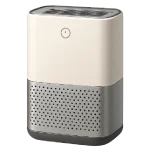
If you are dealing with an air purifier that won’t start or isn’t cleaning the air, the issue is often tied to airflow restrictions, maintenance alerts, or a stalled control system. These units are designed to protect their motors when filters clog or sensors misread conditions. This guide ranks causes from common to less common to help you fix an Air Purifier Not Working in 2026.
4 Common Causes for Air Purifier Not Working
1Saturated Filters or Filter Reset Lockout
Modern air purifiers often reduce fan speed or trigger a service alert when the HEPA filter is heavily clogged. A timed filter reminder or airflow sensor can keep the unit from running normally until the filter is replaced and the reminder is reset.
Symptoms
- The “Change Filter” light is flashing or solid red.
- The unit turns on but stays on the lowest, most silent setting regardless of air quality.
Care Plan
- Unplug the unit and open the filter compartment to inspect the HEPA and carbon filters.
- If the white HEPA material is dark gray or black, it is saturated and must be replaced.
- Vacuum the “pre-filter” (the outermost mesh layer) to remove large pet hair and dust clumps.
- Install the new OEM filter, ensuring any plastic packaging is completely removed.
- Power the unit on and hold the “Reset” button (often indicated by a circular arrow or filter icon) for 5 seconds until the light clears.
Common Mistakes
- Forgetting to remove the plastic shipping wrap from a new filter, which can cause the motor to burn out.
- Thinking the unit is broken because the light stayed red after the filter was changed (you must manually reset it).
2Dirty Air Quality Sensor (PM2.5)
The air quality sensor (usually a PM2.5 laser or infrared sensor) is the “eyes” of the purifier. If dust settles on the sensor lens, it will report “Poor” air quality indefinitely, causing the fan to run at max speed or preventing “Auto Mode” from functioning correctly.
Symptoms
- The air quality indicator stays red even in a clean room.
- The fan speed fluctuates wildly for no apparent reason.
Care Plan
- Locate the sensor vent, usually a small perforated door on the side or back of the unit.
- Open the sensor cover and use a vacuum or compressed air to clear the intake.
- Use a dry Q-tip to gently wipe the tiny glass lens inside the sensor housing.
- Close the cover and wait 10 minutes for the sensor to recalibrate to the room’s air.
- If the reading is still stuck, check for nearby sources of interference like humidifiers (which produce “mist” that sensors see as dust).
Common Mistakes
- Using a wet Q-tip or cleaning chemicals on the sensor lens, which can leave a film and ruin accuracy.
- Placing the purifier in a corner where air cannot circulate past the sensor.
3Fan Motor Obstruction or Bearing Wear
The fan is the only moving part in most purifiers. Over time, hair can wrap around the spindle, or the bearings can dry out. If the fan cannot spin at its target RPM, the unit’s safety firmware may cut power to the entire device.
Symptoms
- The unit makes a rattling, grinding, or squealing noise.
- You can hear the motor “clicking” but the blades aren’t moving.
Care Plan
- Unplug the unit and use a flashlight to look through the top grill for any foreign objects (like pens or toys).
- If accessible, try to spin the fan blades manually with a long plastic stick; they should spin freely.
- If the fan is stiff, you may need to disassemble the housing to clear hair from the motor shaft.
- Clean the fan blades with a damp cloth; heavy dust imbalance can cause vibrations that trigger a shutdown.
- If the motor is seized, it typically requires a full motor assembly replacement.
Common Mistakes
- Spraying WD-40 into the motor; this attracts more dust and creates a fire hazard.
- Operating the unit without filters, which allows dust to enter and seize the motor bearings.
4Control Board or Smart Connectivity Hang
2026 air purifiers are “Smart” devices with Wi-Fi chips and complex control boards. A power surge or a failed firmware update can cause the board to “hang,” making the buttons unresponsive or causing the unit to remain in a standby loop.
Symptoms
- The display is lit, but the buttons don’t do anything.
- The unit keeps disconnecting from the mobile app and won’t turn on manually.
Care Plan
- Perform a “Hard Reset” by unplugging the unit from the wall for at least 30 minutes to drain the capacitors.
- Plug the unit back in and immediately hold the “Power” and “Auto” buttons for 10 seconds.
- Check the mobile app for any “Firmware Update” notifications and attempt to complete them.
- If the unit is unresponsive, try a different wall outlet to ensure the issue isn’t a tripped GFCI.
- If the touch panel is unresponsive, wipe it with a dry microfiber cloth to remove oils that can interfere with capacitive touch.
Common Mistakes
- Assuming the unit is “dead” when it was simply placed in “Child Lock” mode.
- Attempting to use the unit during a firmware update, which can “brick” the control board.